Pages

Tuesday, 2 April 2013

Taking image from photo gallery in iOS app

To Take image from photo gallery you will have to implement a method of UIImagePickerControllerDelegate.

First of all go to .h file and defines the  UIImagePickerControllerDelegate.


@interface NewPersonViewController : UITableViewController 


Now go to .m file and implement the delegate method.
This method will be called when you will select your desire photo from image gallery, But right now this method will not called.
There should be an ImageView on your controller on which you will show image after selecting from gallery and make the property of that imageView.


- (void)imagePickerController:(UIImagePickerController *)photoPicker didFinishPickingMediaWithInfo:(NSDictionary *)info
{
    UIImage *selectedImage = [info valueForKey:UIImagePickerControllerOriginalImage];
    [self.selectedImageView setImage:selectedImage];
    [photoPicker dismissModalViewControllerAnimated:YES];
}


This code will not work according to your desire. You need to write an IBAction which will connect to a button and on pressing button photo gallery will be opened and you will have to write the related code in this method.


- (IBAction)PhotoFromAlbum:(id)sender {
    UIImagePickerController *photoPicker = [[UIImagePickerController alloc] init];
    photoPicker.delegate = self;
    photoPicker.sourceType = UIImagePickerControllerSourceTypePhotoLibrary;
    [self presentViewController:photoPicker animated:YES completion:NULL];
}


Now this above delegate method will also be called and whole code will work fine.

Monday, 25 March 2013

How to add background music in iOS app


Adding background music in iOS app is very simple. You will have to do following steps.

Step 1

Add music file(which you want to play) into your resources or supporting files folder in your project

Right click on Resources folder or Supporting files and chose "Add Files to ..." 


Now Chose the file which you want to play and click on "Add" button. Remember "copy items into destination group's" should be checked


 After this your file will be added in supporting files or resources folder.


Step 2

Add AVFoundation framework into your project.

For this single click on your project name present in upper left corner of project navigator.
 The following window will be opened

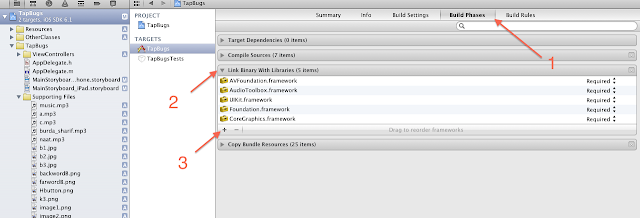
Now do according to no given in following pic. 1 click on build phases.2- click on arrow of link binary with libraries.3-click on "+" button.


After 3 in above pic following window will be open. Now you have to chose AVFoundation.framework from the list of frameworks.

 Write "AVFoundation" in search bar & chose AVFoundation.framework and click "Add" button


AVFoundation framework has successfully added into your project 

Step 3 

Now go to .h file and   import AVFoundation frame work and make property of AVAudioPlayer


#import <UIKit/UIKit.h>
#import <AVFoundation/AVFoundation.h>

@interface HomeViewController : UIViewController
@property (nonatomic, retain) AVAudioPlayer *player;

@end

Now go to .m file and synthesize the property, also write code to play music in viewDidLoad().


@synthesize player;

- (void)viewDidLoad
{
    [super viewDidLoad];
    //AVAudioPlayer *player;
    NSURL *url = [NSURL fileURLWithPath:[[NSBundle mainBundle] pathForResource:@"a" ofType:@"mp3"]];
    
    NSError *error;
    player = [[AVAudioPlayer alloc] initWithContentsOfURL:url error:&error];
    player.numberOfLoops = -1;
    
    if (error)
    {
        NSLog(@"Error in audioPlayer: %@",[error description]);
    } else {
        [player play];
    }
}  

Now run the app it will work fine


NOTE  Format of file which you want to play should be accurate. Some time music did not played while file format is mp3, in that case there is a problem with that file. Use another file to solve the problem.